 Vectode
EAN barcodes in Adobe Illustrator
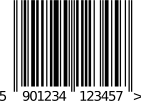
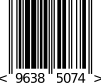
EAN-13 is the standard retail barcode on packaging sold in Europe and most of the world; EAN-8 is its short version for small packages. Vectode places both directly on your Illustrator artboard as editable vector paths — no rasterized images, no online generators, no re-drawing.
How to insert it in Illustrator
- Open the Vectode panel (Window ▸ Extensions ▸ Vectode) or the standalone app.
- Choose EAN-13 (or EAN-8) and type your number — enter 12 digits and Vectode computes the check digit for you, or paste all 13 and it verifies it.
- Pick a size and click Insert. The barcode lands on the artboard as vector paths with correct quiet zones and OCR-B human-readable text.
What Vectode gets right
- EAN-13: 13 digits (12 + check digit, computed automatically)
- EAN-8: 8 digits, for packages too small for EAN-13
- Nominal size 37.29 × 25.93 mm (EAN-13 at 100 % magnification); standard magnification range 80–200 %
- Quiet zones included automatically (11 modules left / 7 right for EAN-13)
- Human-readable digits in OCR-B, as the standard specifies
Frequently asked questions
Can I scale the barcode after inserting it?
Yes — the code is a true vector, so it stays perfectly crisp at any size. For retail scanning, keep within the standard 80–200 % magnification range and always scale proportionally.
Does Vectode compute the EAN check digit?
Yes. Enter the first 12 digits and the 13th (check digit) is computed automatically; if you paste a full 13-digit code, Vectode verifies it and warns you when it is wrong.
What is the difference between EAN-13 and EAN-8?
EAN-13 is the standard 13-digit retail code. EAN-8 is a shortened 8-digit code issued by GS1 specifically for small packages where EAN-13 would not fit.
One-time payment. 14-day money-back guarantee. VAT handled at checkout.
More codes in Vectode: UPC-A & UPC-E · GS1 DataMatrix · Data Matrix & Aztec · Pharma codes (PPN, SÚKL) · all features →